
Household & members
Inviting members
- Settings → Members → Invite – send the link by message, WhatsApp, e-mail…
- The invited person creates an account (or signs in) and opens the link, or enters the invite code under Join an existing one.
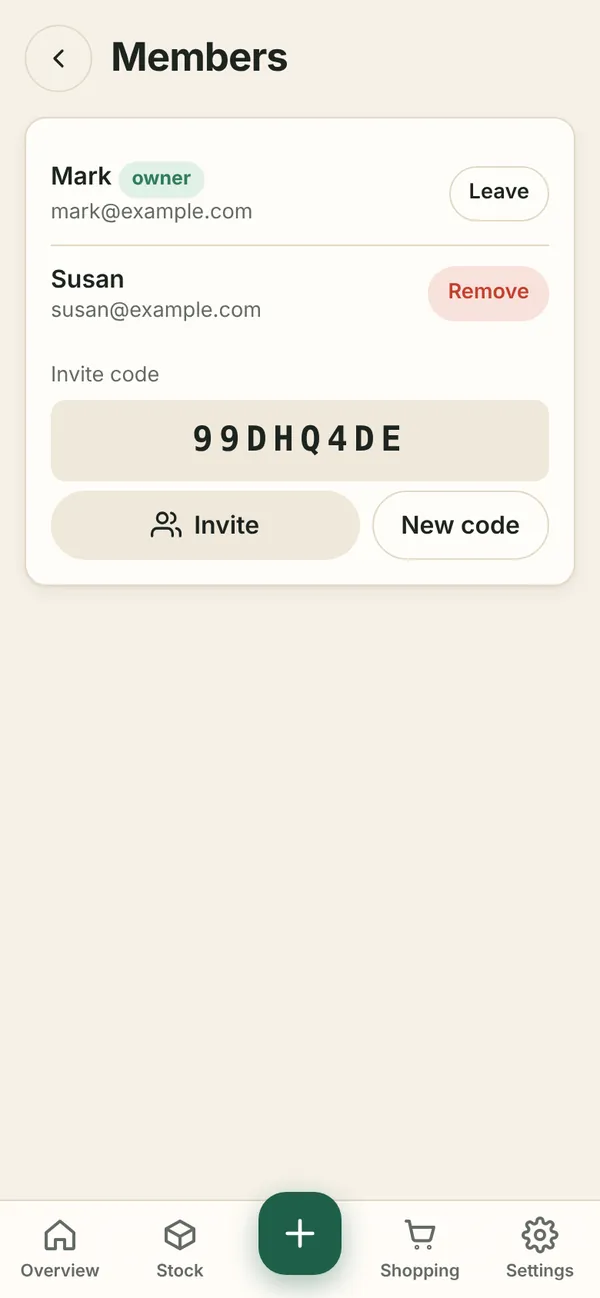
All members see and edit the same stock, shopping list and storage places, and receive reminders. They see each other's name and e-mail.
Owner
Whoever created the household is its owner. The owner can remove members, generate a New code (the old one stops working) and manage the subscription. When the owner leaves, the longest-standing member becomes owner.
Leaving a household
Settings → Members → Leave. If you are the last member, the household is deleted with all its food and photos.
Storage places
In Settings → Storage places you can:
- add a place – a name and a type (Fridge, Freezer, Pantry / cupboard, Cellar, Other); there can be several of the same type: Fridge, Fridge 2, Garage freezer…
- rename it and change its type right in the list,
- change the order with the arrows (places are shown in this order everywhere in the app),
- delete a place – its items stay, just without a place.
The type of place helps when estimating shelf life from a receipt (food lasts longer in the freezer).
More households
One account can be a member of several households – for example Flat and Cottage. Create or join another one via Settings → Household → Another household / join. Switch between them on the Overview or in Settings → Household; each has its own notification time and default reminders.