
Adding food
With a barcode
- + → Scan a barcode and point the camera at the code.
- Spotrebio looks the product up in the open Open Food Facts database and fills in the name, brand and photo.
- Add the expiry date and check the storage place.
- Save – or Save and scan next when you are unpacking a whole shop.
While scanning you can turn on the Light, read the code From photo or Enter manually (8–13 digits).
Your household remembers every product. Next time you scan the same code, your name, photo, usual place and shelf life are used – just confirm.
If the product is not in the database, type the name yourself. We remember it for the next scan.
Without a barcode
+ → Add without a barcode. Fill in the name (for example Tomatoes, Goulash), the place and optionally the quantity and date. Without a date the item is kept without a date and no reminders are sent for it.
Expiry date
Packages show one of two dates – choose the same type:
- Use by – perishable food (meat, dairy). Do not eat it after this date.
- Best before – long-life food; it may still be fine after the date, judge for yourself.
Just type the date: 12/10, 12/10/26 or 121026. Without a year we take the next such date ahead. The calendar icon opens a date picker and the +3 d, +7 d, +1 m … buttons set it with one tap.
Open packages
A lot of food must be eaten within a few days once opened (ham, cream, ketchup…).
- In the item detail turn on Opened (or tap Just opened).
- Enter Use within (days) after opening.
Spotrebio then reminds you by the earlier of the two dates – the one on the package or the opening date plus the days. You can see which one applies in the Reminders use the date line.
Photo
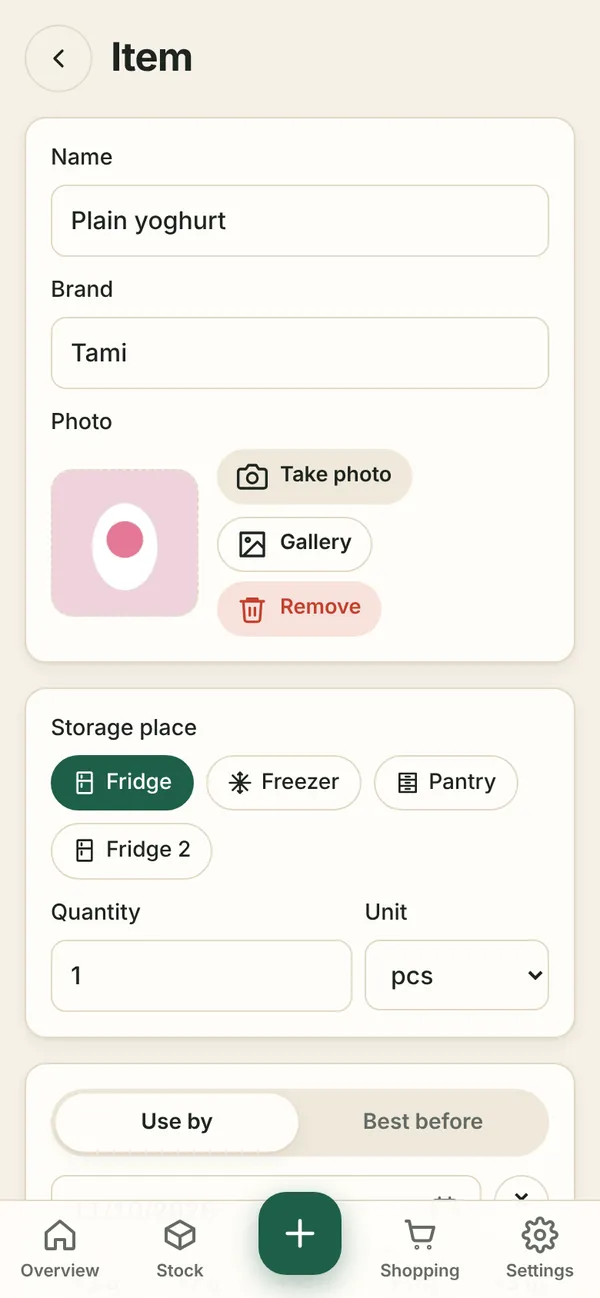
- Take photo or pick one from the Gallery – photos are resized automatically and location data is removed.
- Download from the web – the Open Food Facts photo, if the product has one.
Quantity and place
Quantity can be in pieces (pcs), packs, grams, kilograms, millilitres or litres. With several pieces the app asks how much you used up – see Using up & throwing away.
Storage places (e.g. Fridge 2, Cellar) are managed in the household settings.
Price
Items from a receipt get their price automatically. For items added by hand you can fill in Price (€) – for the whole amount. Prices are used to show how much money goes to waste.
Editing and deleting
Tap the item in Stock or on the Overview, change what you need and Save changes. Use Delete permanently only for items added by mistake – for everything else Used up or Thrown away is better, so you keep the history and shopping-list suggestions.