
Getting started
Spotrebio keeps track of the expiry dates of the food you have at home and reminds you in time what to eat first. Your stock belongs to a household, which you can share with your family or flatmates.
1. Create an account
- Open [app.spotrebio.eu](https://app.spotrebio.eu) and choose Sign up.
- Enter your name, e-mail and a password (at least 8 characters) and accept the terms.
- Create a new household – you get the places Fridge, Freezer and Pantry right away. If someone has invited you, choose Join an existing one and enter the invite code.
- Confirm your e-mail with the link we send you. You can use the app right away; confirmation is needed for the weekly summary and the subscription.
2. Add the app to your home screen
Spotrebio is a web app – there is nothing to download from a store, but on your home screen it behaves like a regular app. On iPhone this is required for notifications.
- iPhone / iPad (Safari): Share button → Add to Home Screen → open Spotrebio from the home-screen icon.
- Android (Chrome): menu ⋮ → Install app (or Add to Home screen).
- Computer (Chrome, Edge): the install icon in the address bar. A plain bookmark works too.
3. Turn on reminders
On the Overview tap Turn on and allow notifications. More in Reminders & notifications.
4. Add your first food
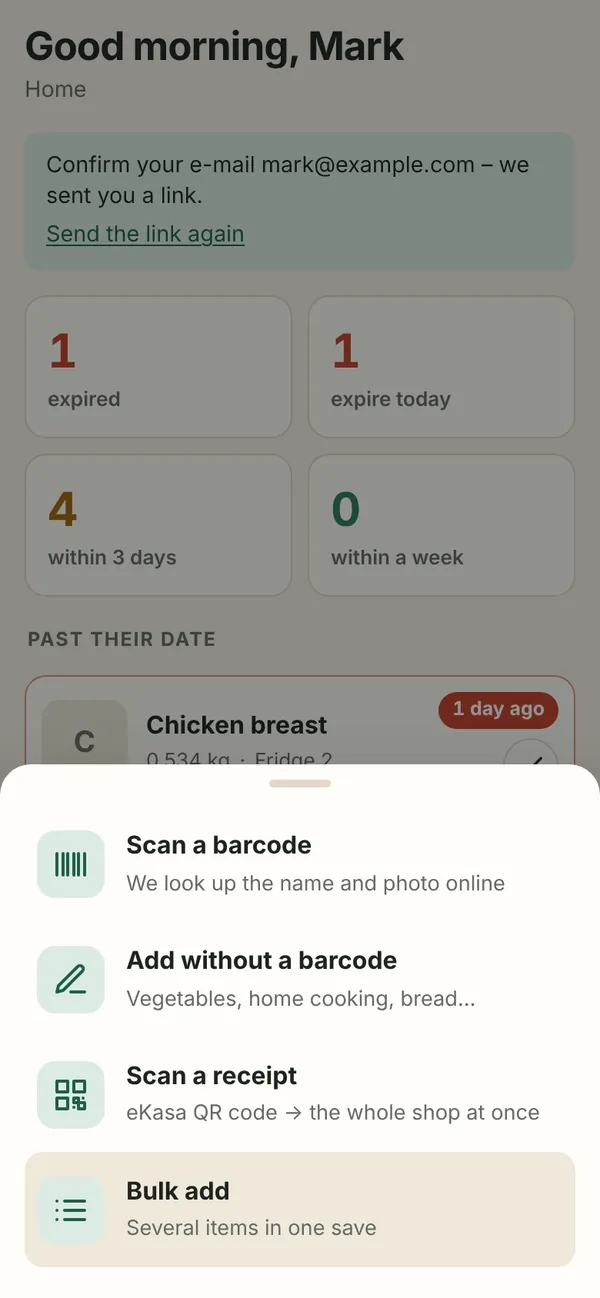
The + button in the middle of the bottom bar offers four ways:
| Way | Best for |
|---|---|
| Scan a barcode | packaged food – we look up the name and photo |
| Add without a barcode | vegetables, bread, home cooking |
| Scan a receipt | the whole shop at once from the eKasa QR code |
| Bulk add | several items in one save, e.g. from a market |
Details: Adding food and Import a receipt.
Finding your way around
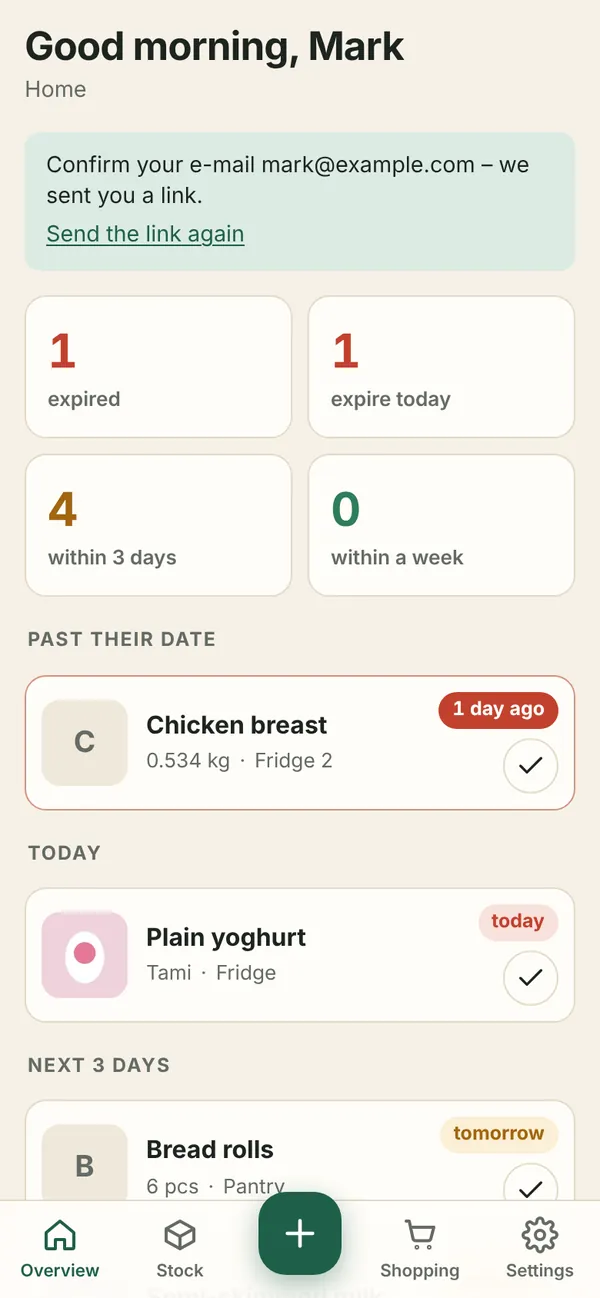
- Overview – what has expired, what expires today, within 3 days and within a week; counts per storage place and how much you threw away this month.
- Stock – everything you have at home; search by name, brand or barcode, filter by place and date. The History tab shows what was used up or thrown away.
- Shopping – the shopping list.
- Settings – a list of sections: Appearance & language, Household, Storage places, Members, Notifications, Account, Privacy & data (and Plan when subscriptions are on). On a computer the list and the selected section are side by side.
On tablets and computers the navigation is on the left and lists turn into a grid. Switch between light and dark theme and the language (SK / EN) in Settings → Appearance & language.